Search Packages are the collection of saved searches. Using LPSM, you can save a frequently used search query to use in the future without typing it explicitly on a Fabric-enabled LogPoint.
My Packages contain all your search packages, whereas vendors’ search packages are grouped in the Vendor Packages section. Additionally, the search packages that other users share are grouped in the Shared Packages section.
Refer to the Search Packages section in the LogPoint Search guide for more details.
Note
You can create, edit, and perform other actions on the search packages in LogPoint v6.12.0 and later only. However, you can push search packages and view push history in LogPoint v7.0.0 and later only.
Go to Settings >> LogPoint Configuration >> Search Packages.
Click Add.
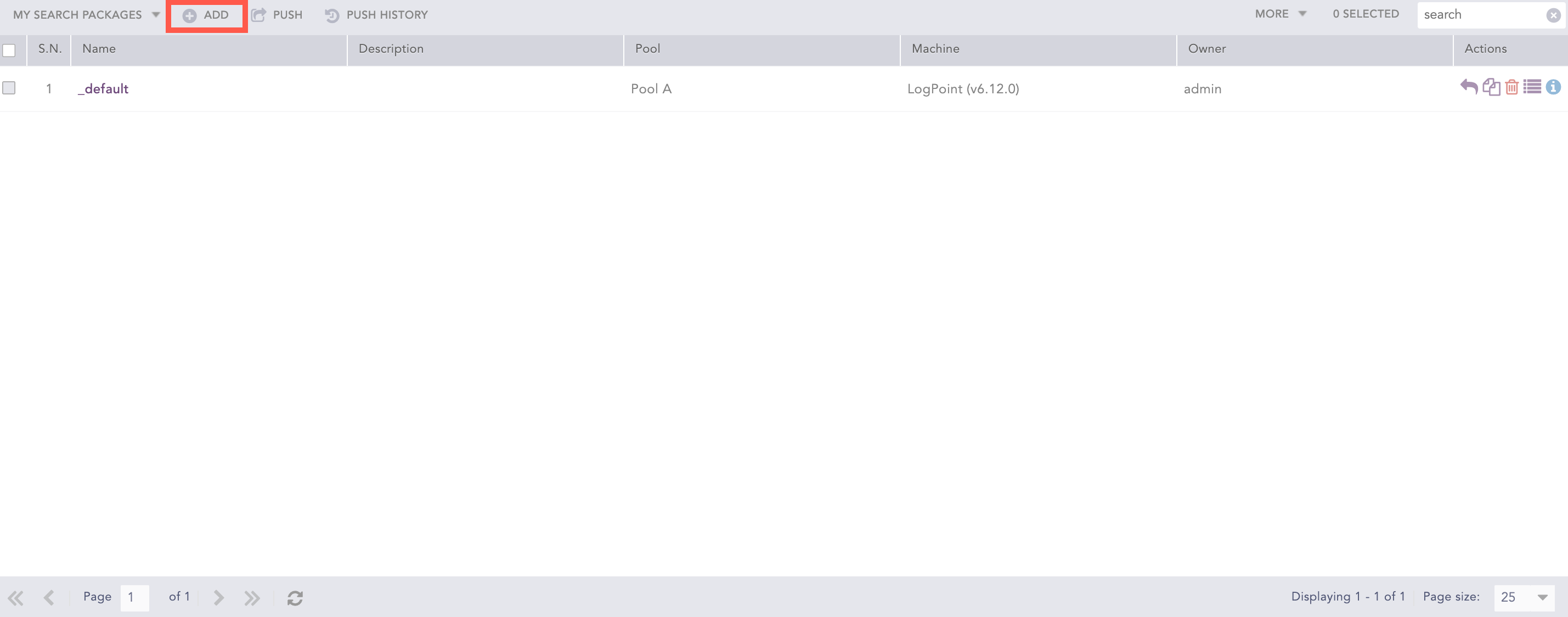
Adding a Search Package
Select a Pool, a Machine, and a LogPoint User.
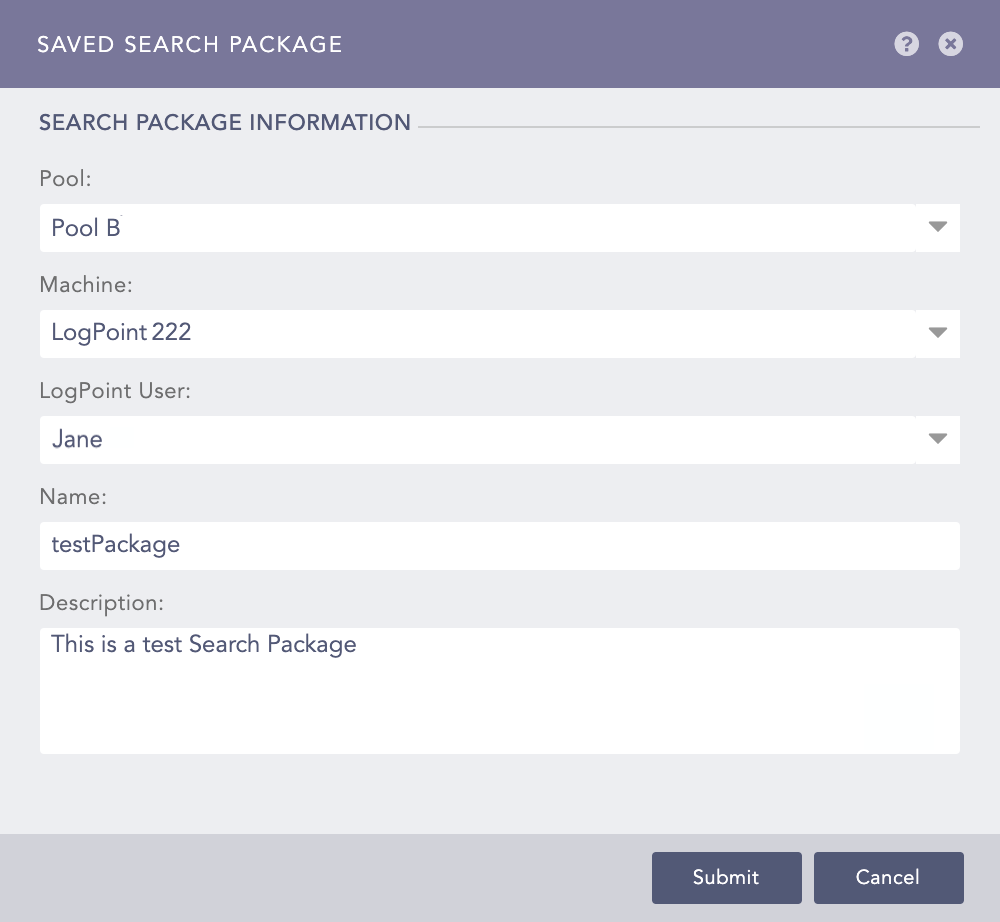
Adding Saved Search Package Information
Enter a Name and a Description.
Click Submit.
Click Add.
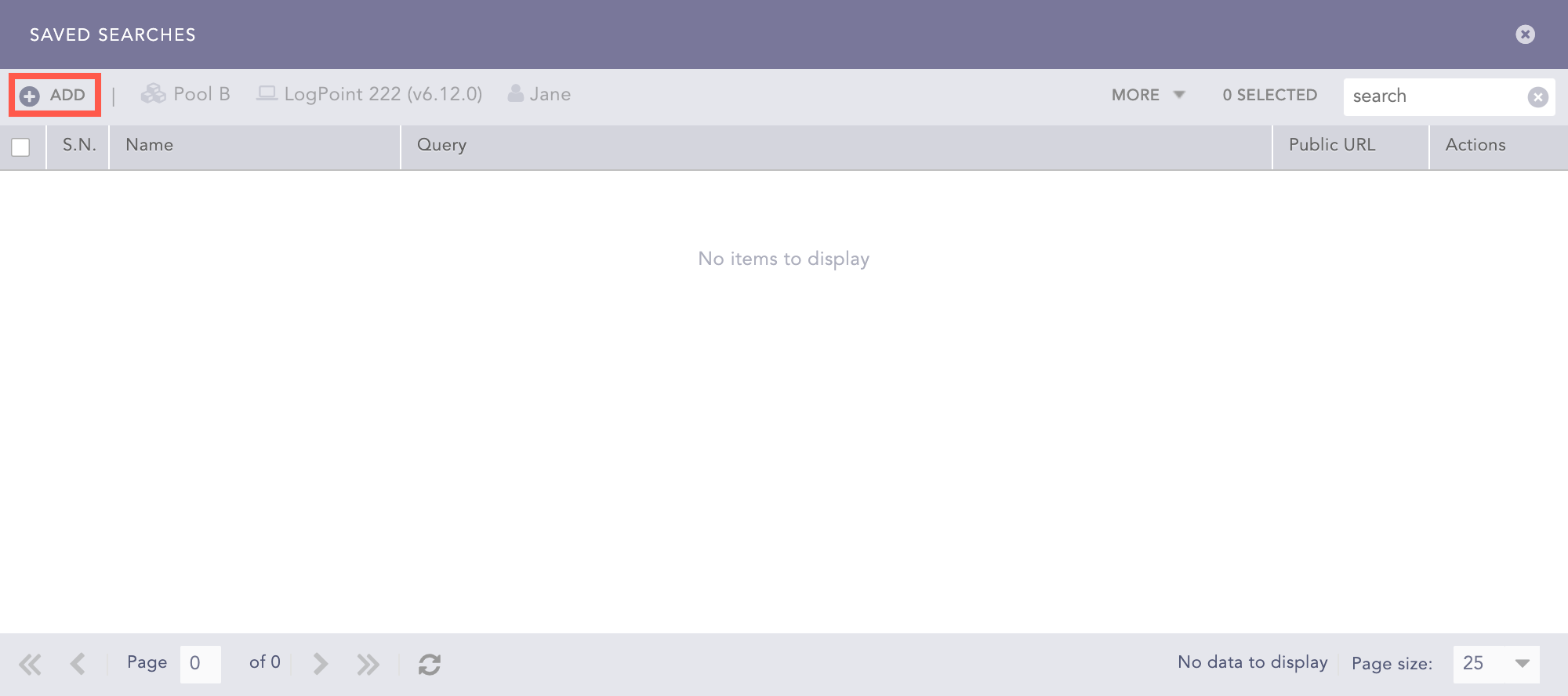
Saved Searches Panel
Enter a Name and an Identifier.
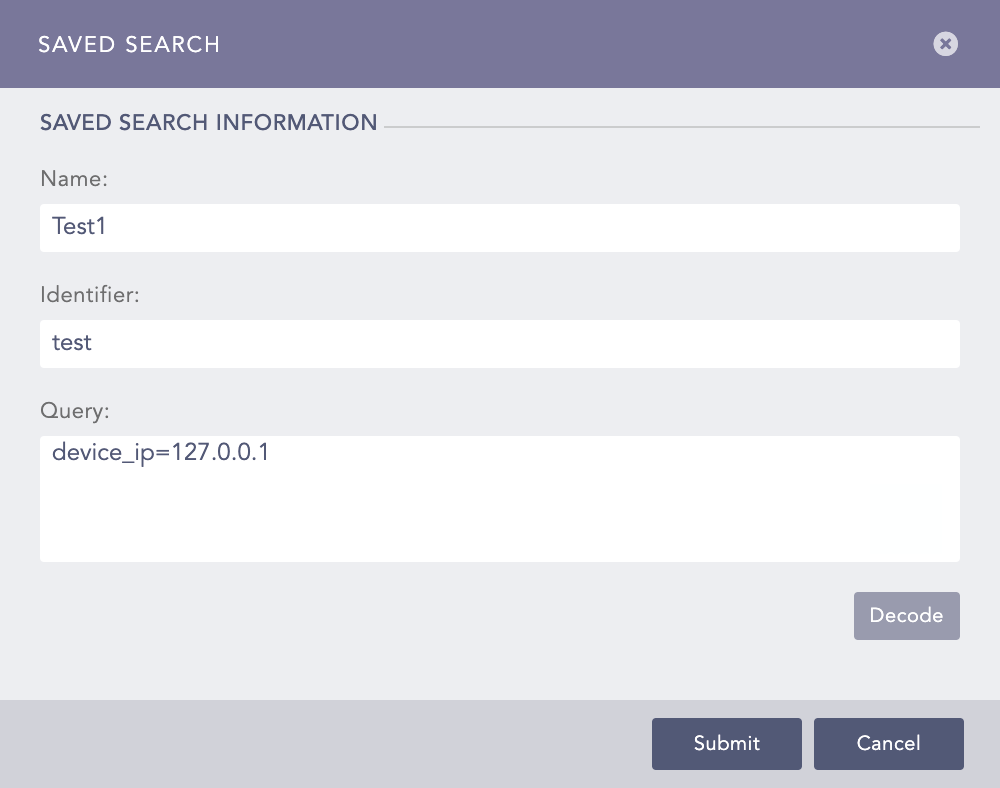
Adding Saved Search Information
Enter a Query.
Note
Click Decode to convert the URL encoded search string to the LogPoint search query format.
Click Submit.
Note
Click the My Packages drop-down at the top-left corner of the panel and select the Vendor Packages to access the Vendor Search Packages page.
Similarly, click the My Packages drop-down at the top-right corner of the panel and select the Shared Packages to access the Shared Search Packages page.
Go to Settings >> LogPoint Configuration >> Search Packages.
Select the search packages and click Push.
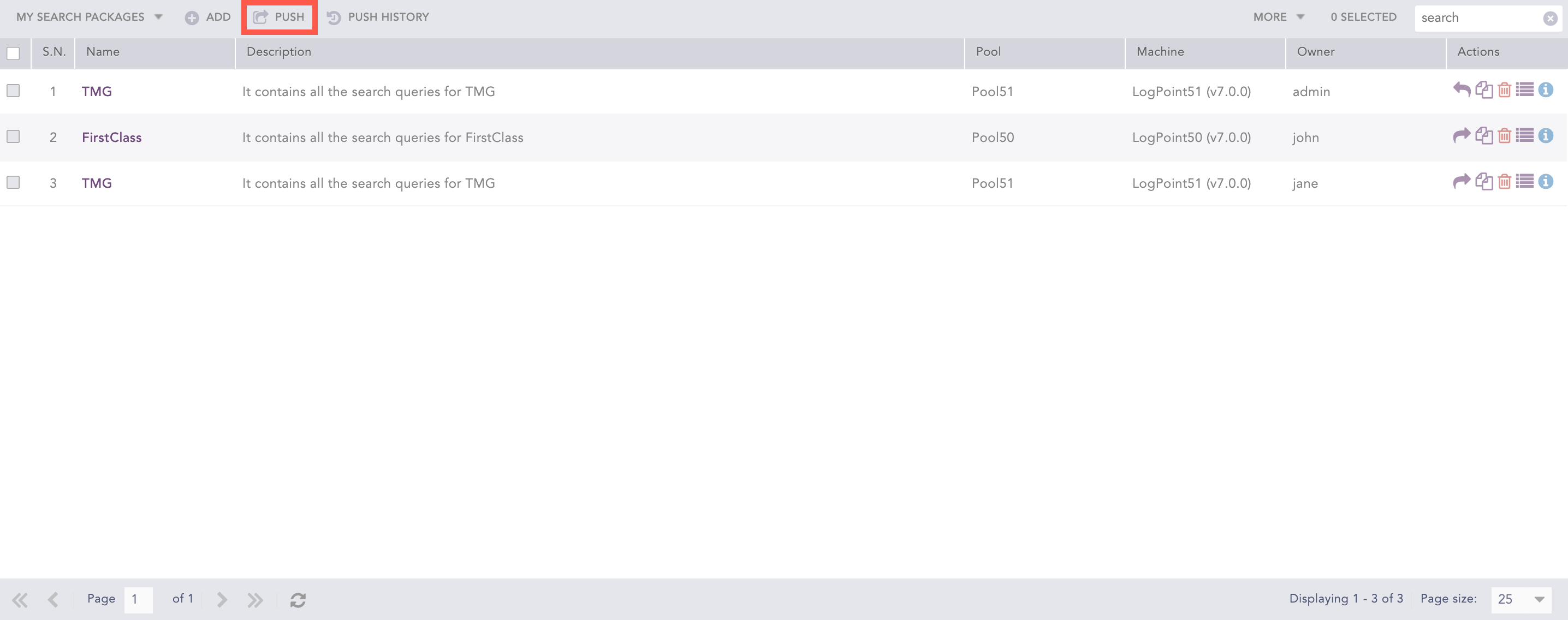
Pushing a Search Package
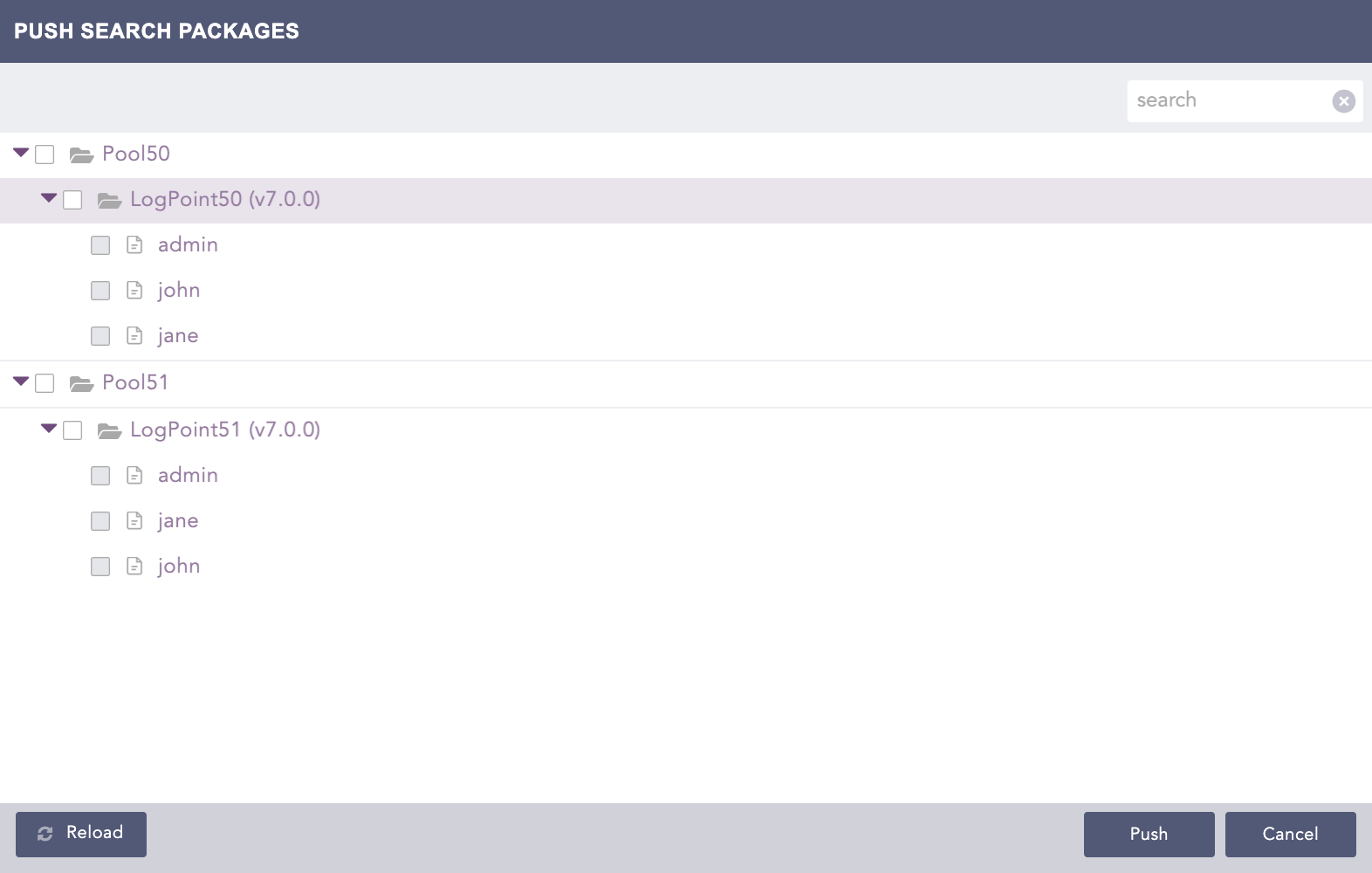
Push Search Packages
Select the Pool, LogPoint, or User where you want to push the selected search packages.
Click Push.
You can click the Push History ( ) button to check the push history.
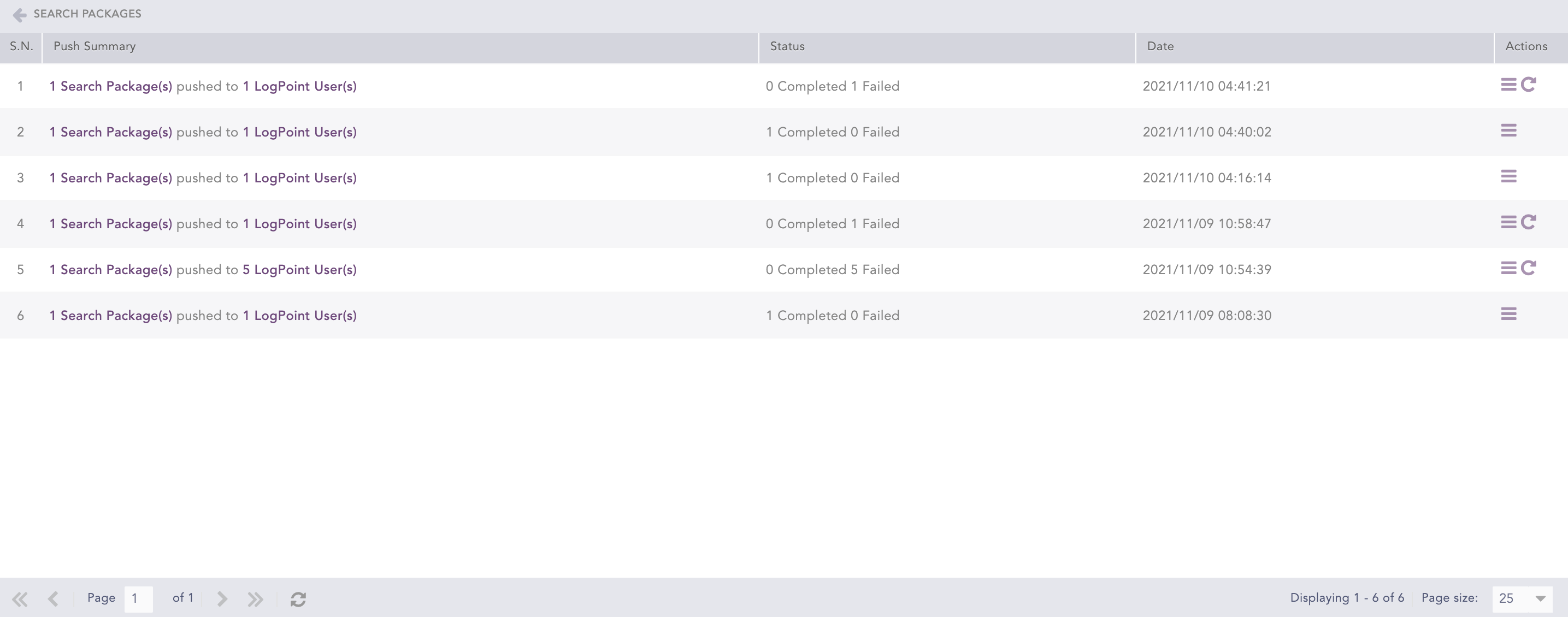
Push History
The Push History page lists the Push Summary, Status, Date, and Actions of all push attempts.
Click the Retry ( ) icon from the Actions column to retry the failed push attempt.
Click the Details ( ) icon from the Actions column to open the Push Detail page.
Click the Manage Saved Searches icon from the Actions column of a search package to view or manage the saved searches of the package.
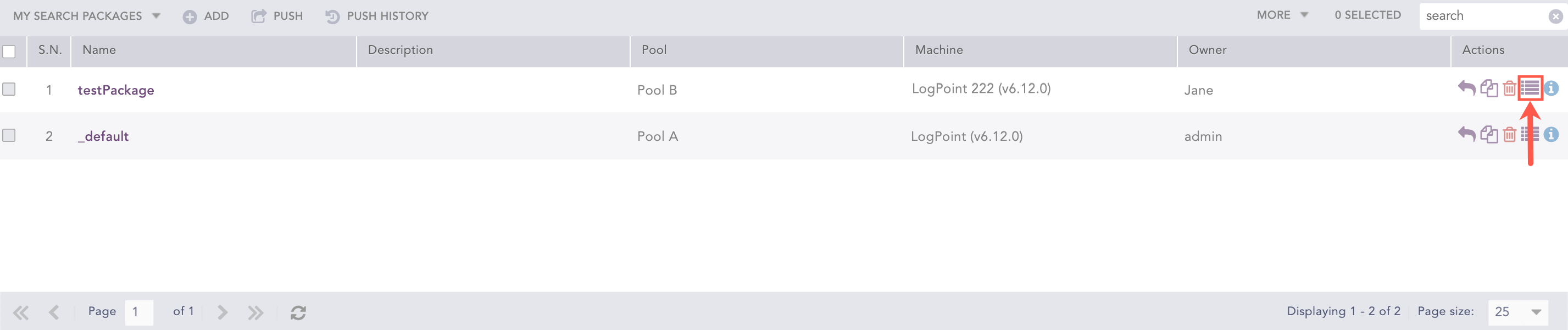
Manage Saved Searches
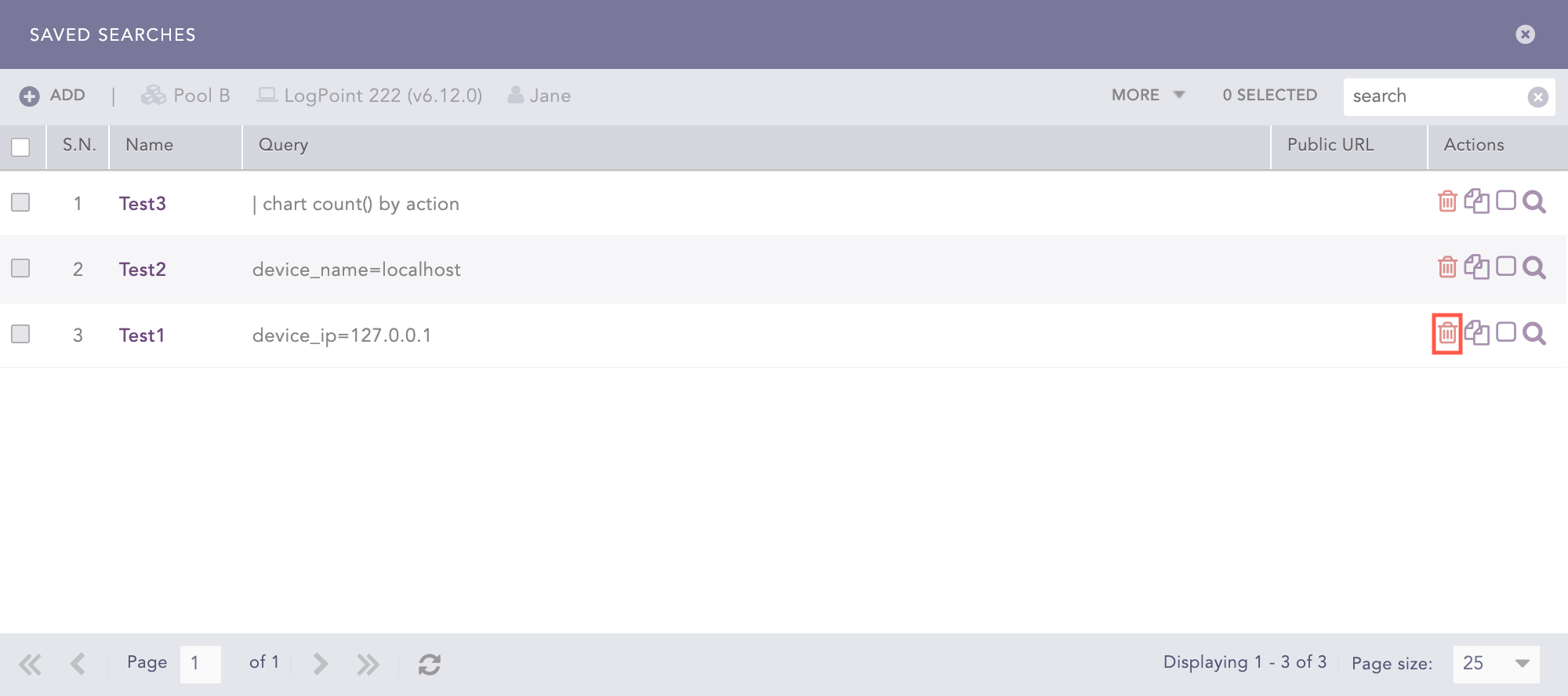
Lists all the search queries saved in a Fabric-enabled LogPoint.
Go to Settings >> LogPoint Configuration >> Search Packages.
Click the Manage Saved Searches icon from the Actions column of the search package.
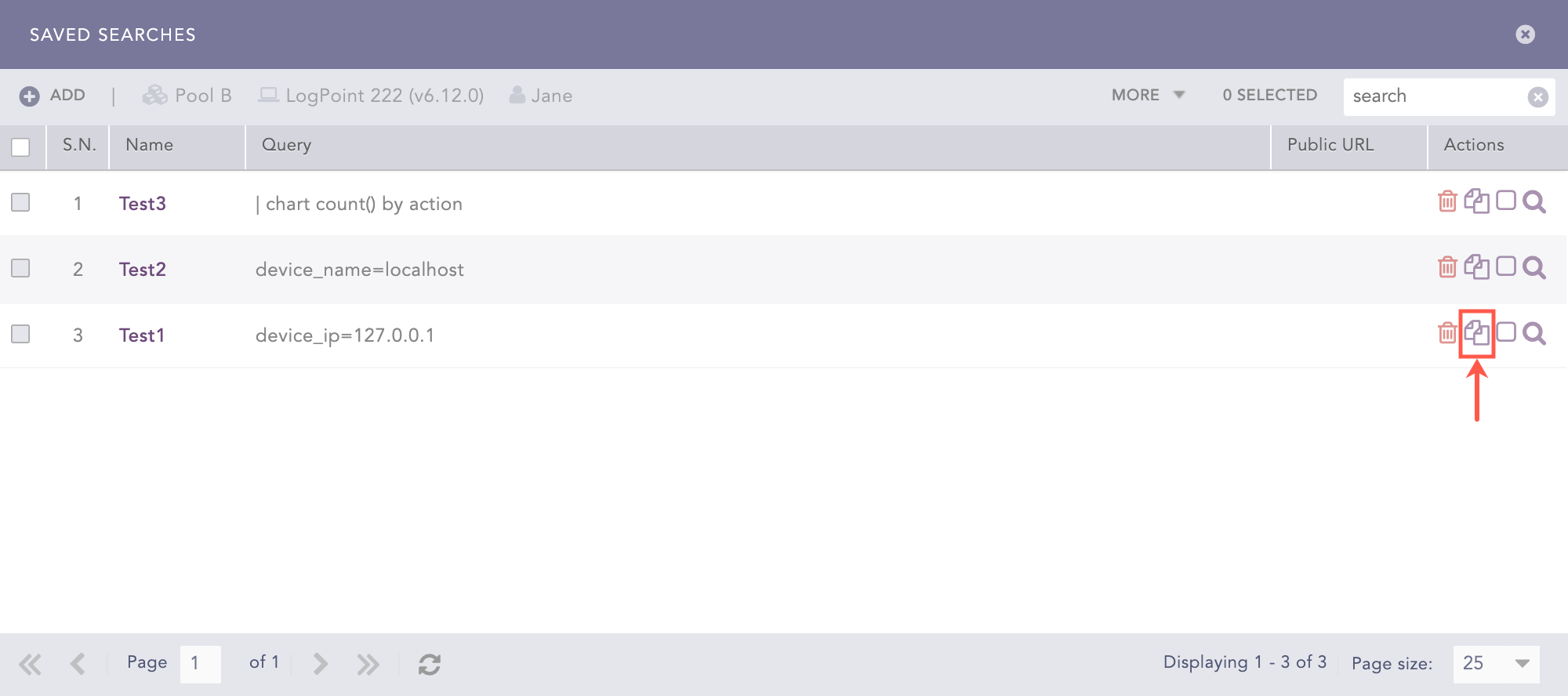
Cloning a Saved Search
Click the Clone icon from the Actions column of a saved search.
To clone multiple saved searches, select the respective searches. Click the More drop-down, select Clone Selected Saved Searches, and click Yes.
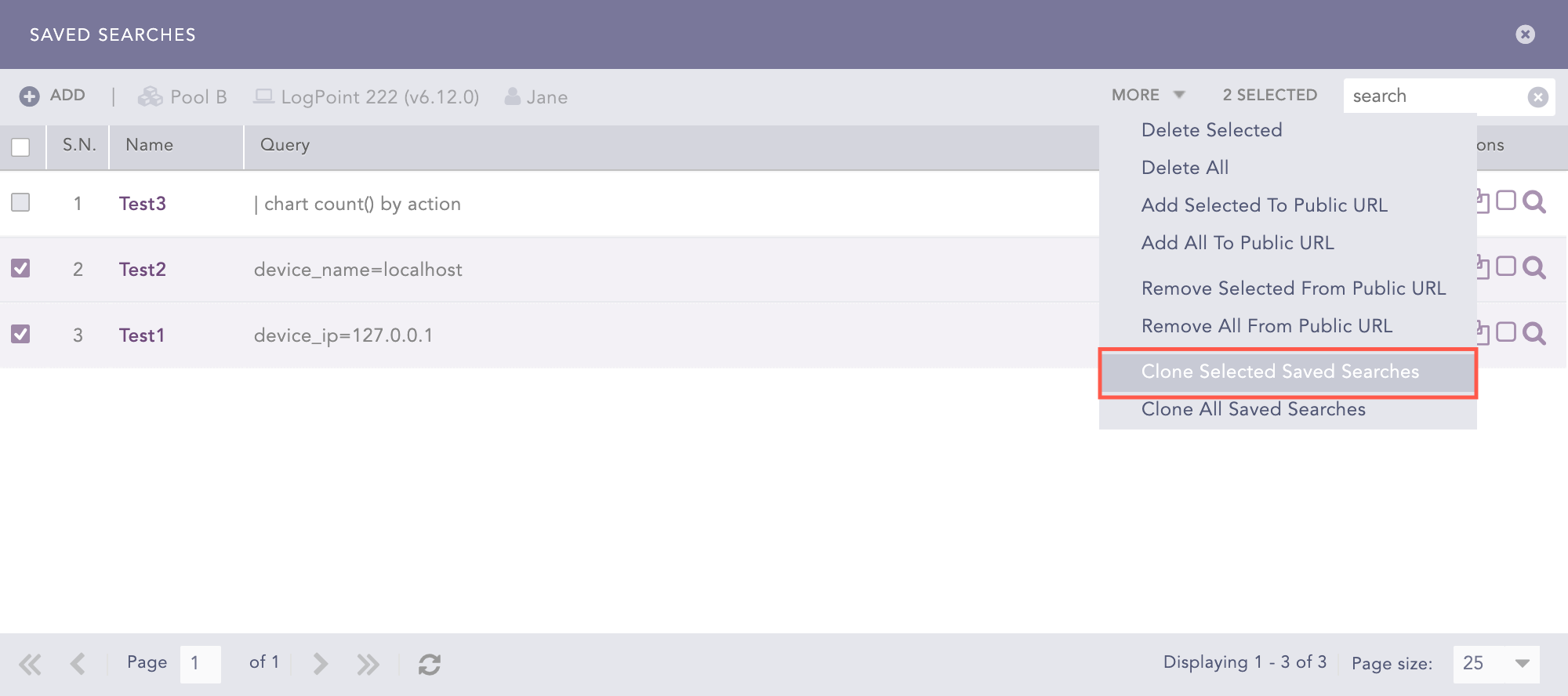
Cloning Selected Saved Searches
To clone all the saved searches, click the More drop-down, choose Clone All Saved Searches, and click Yes.
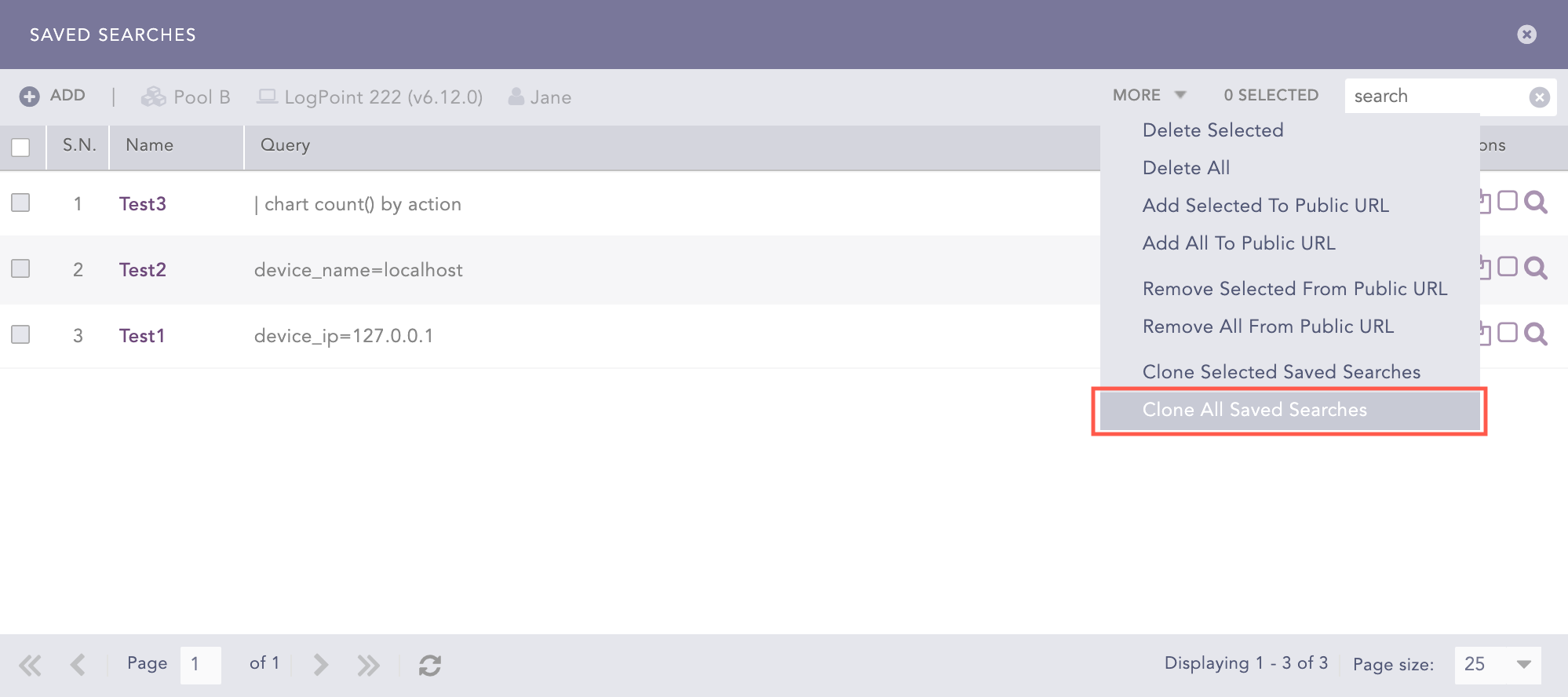
Cloning All Saved Searches
Enter New Names for the cloned searches.
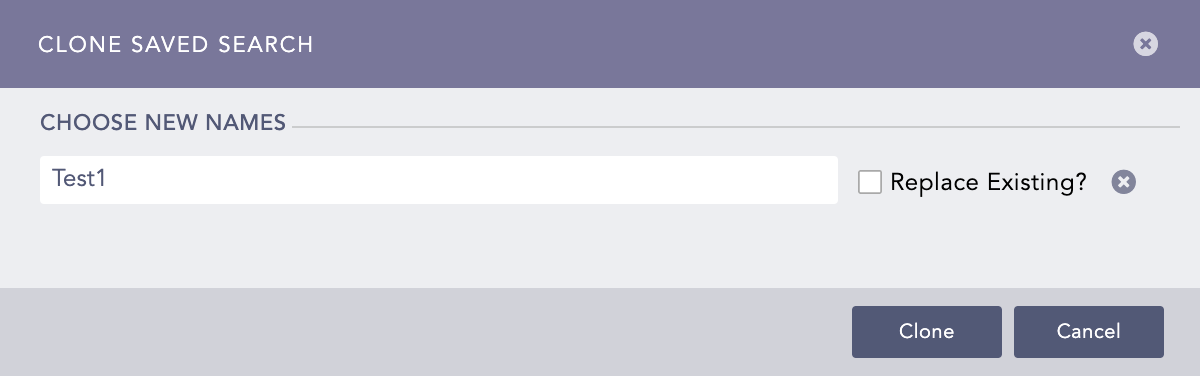
Clone Saved Searches Panel
Check the Replace Existing? checkbox to replace an existing package with the same name.
Click Clone.
Go to Settings >> LogPoint Configuration >> Search Packages.
Click the Manage Saved Searches icon from the Actions column of the search package.
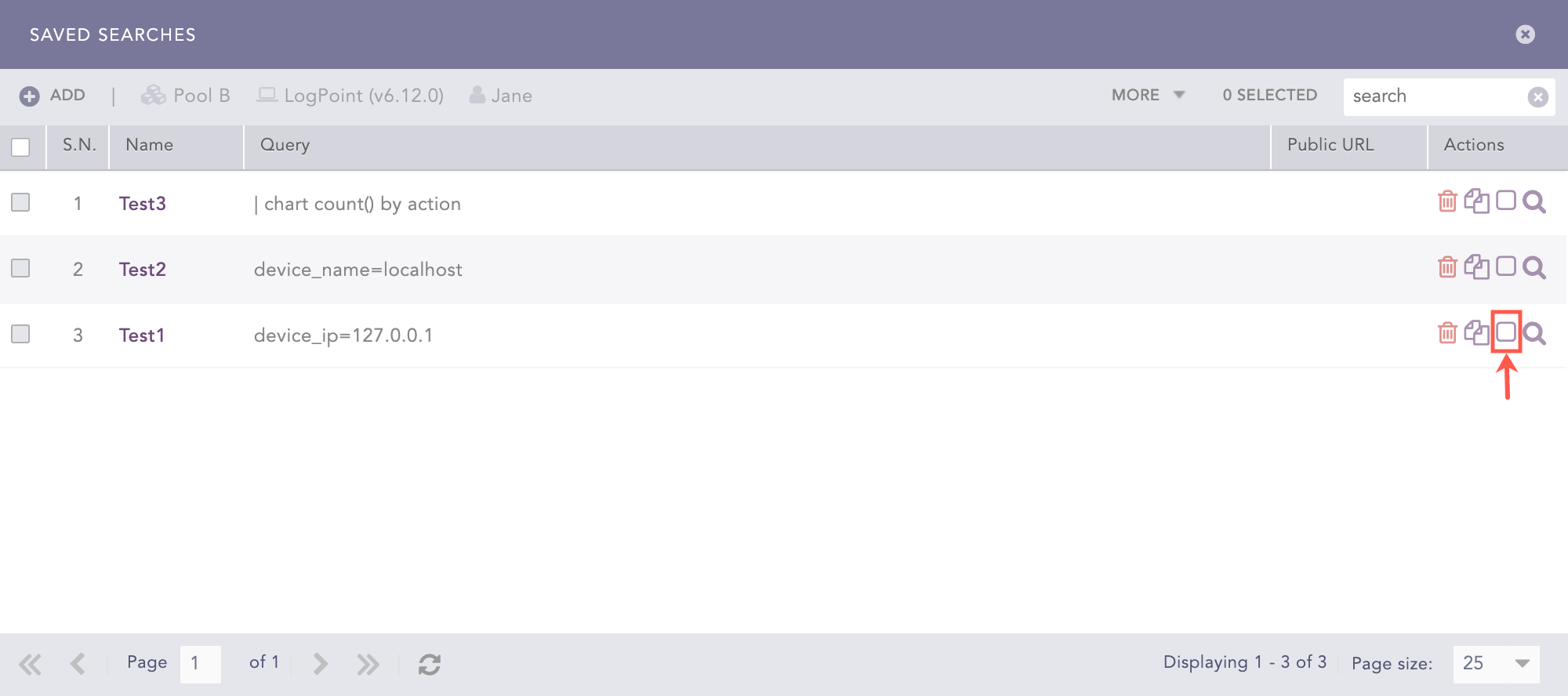
Registering from a Public API
Select the Unregistered: click to register from public api icon from the Actions column of a saved search.
To register multiple saved searches from a public API, select the saved searches. Click the More drop-down and select Add Selected to Public URL.
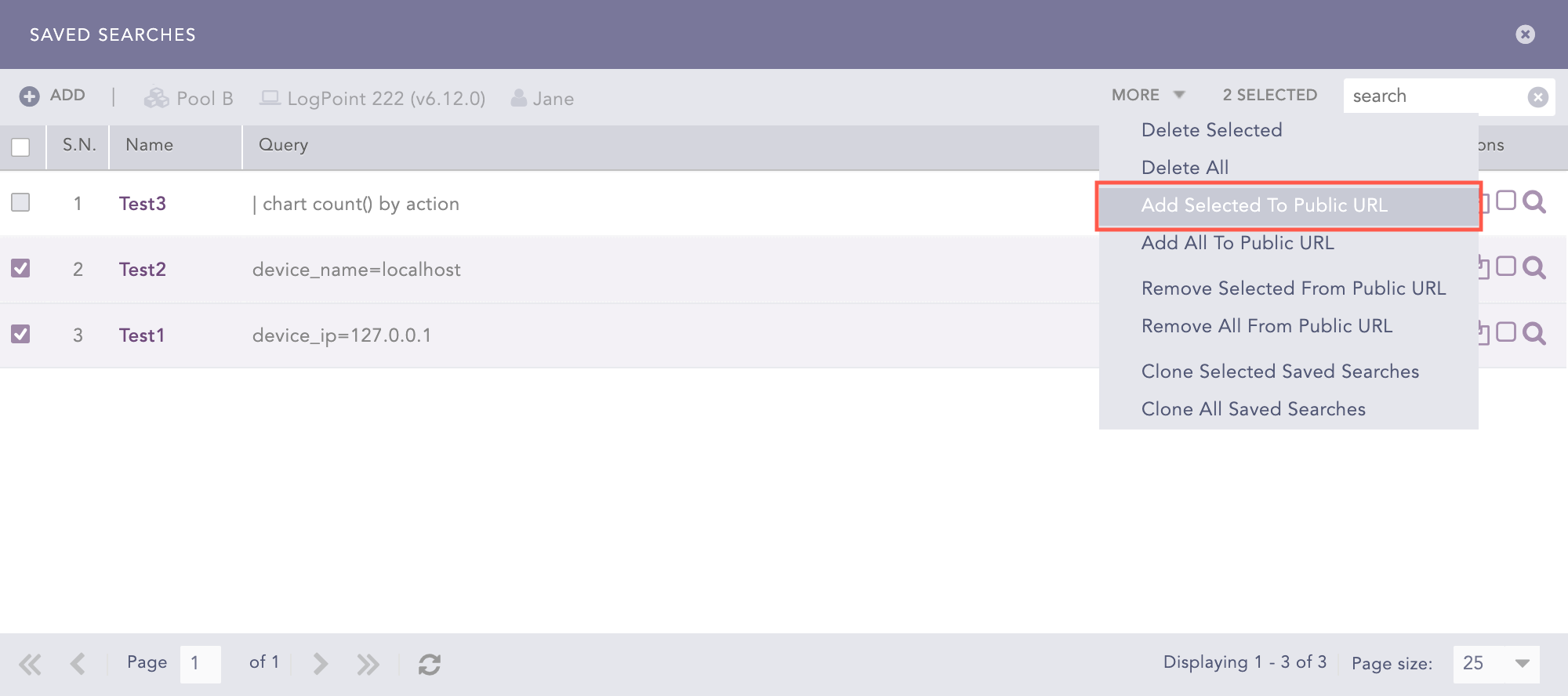
Registering Selected Saved Searches
To register all the saved searches from a public API, click the More drop-down and select Add All to Public URL.
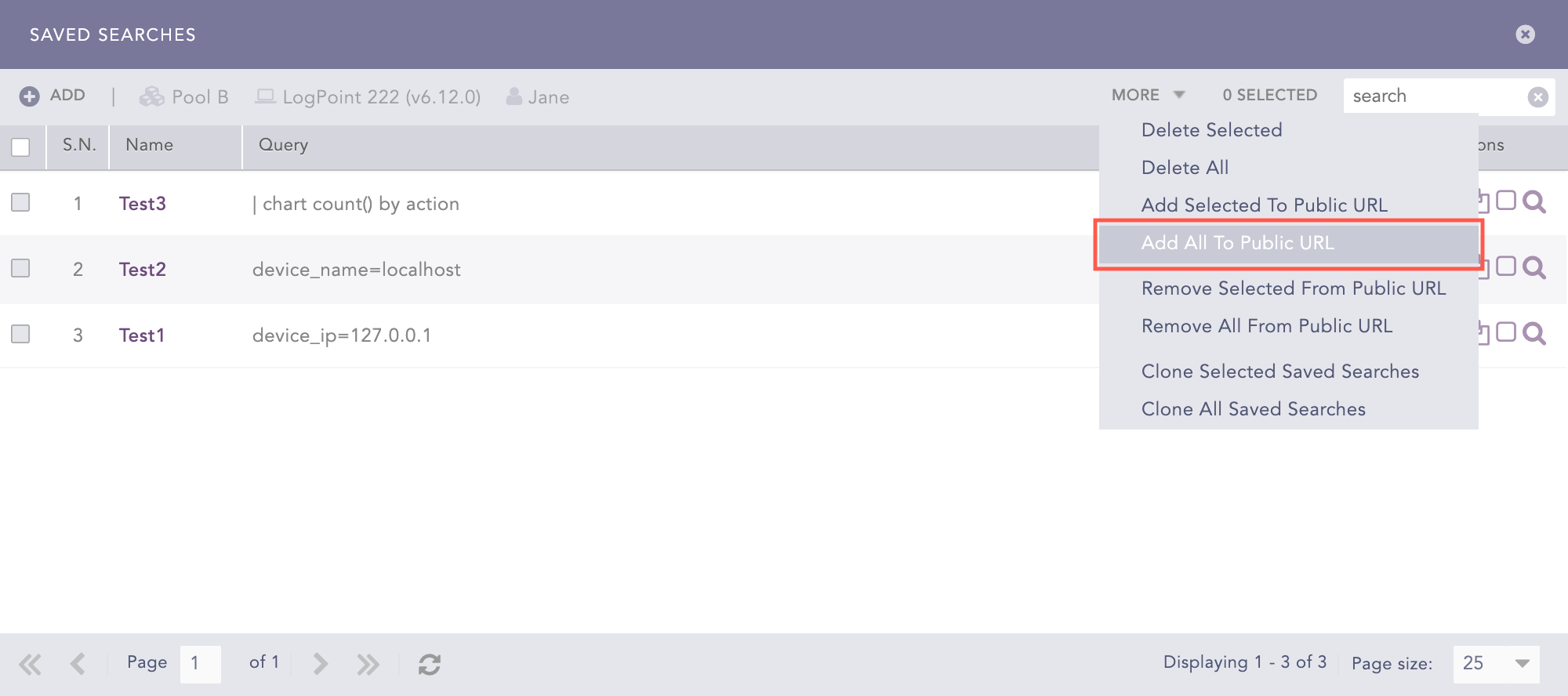
Registering All Saved Searches
Note
You can unregister a saved search from the public API using the same method.
Go to Settings >> LogPoint Configuration >> Search Packages.
Click the Manage Saved Searches icon from the Actions column of the search package.
Click the Search icon from the Actions column of a saved search.
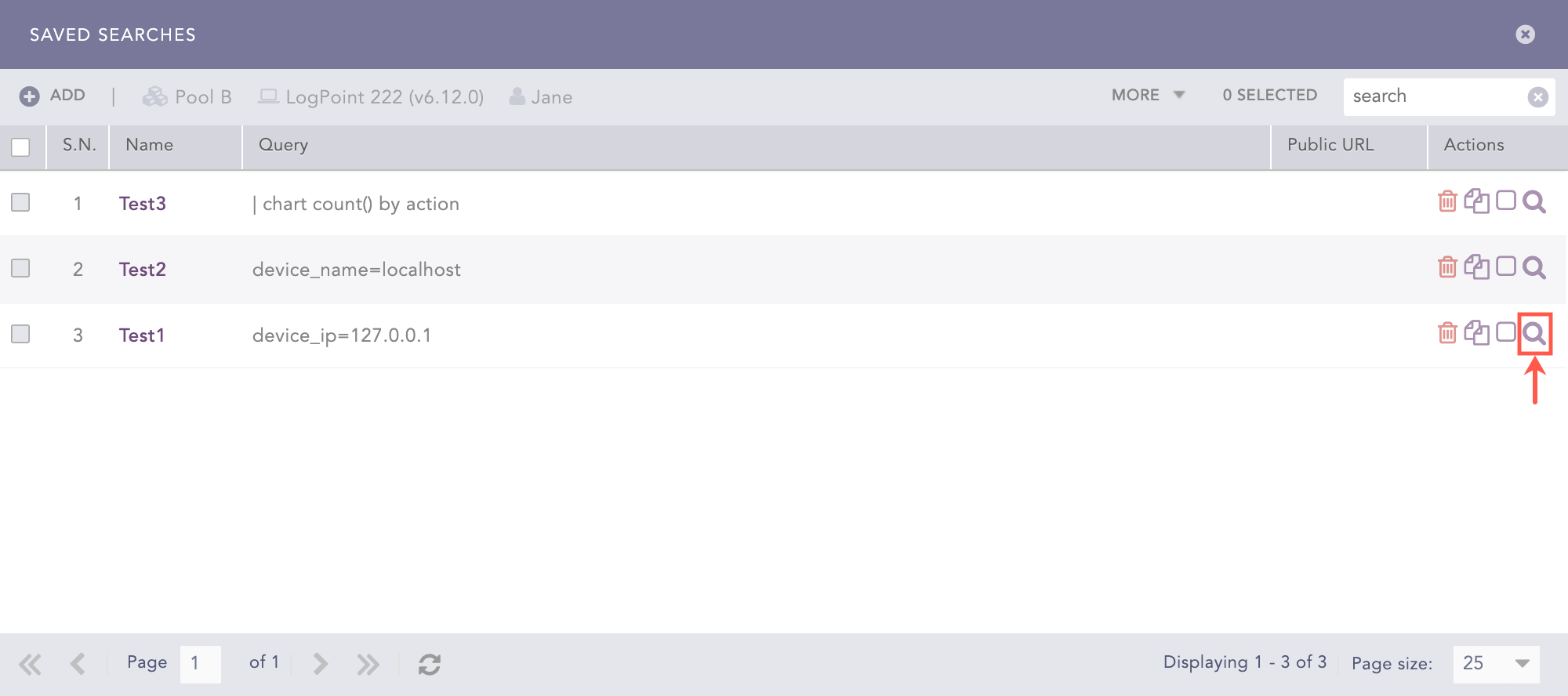
Search Icon in the Saved Search Panel
Select the Repo from the drop-down.
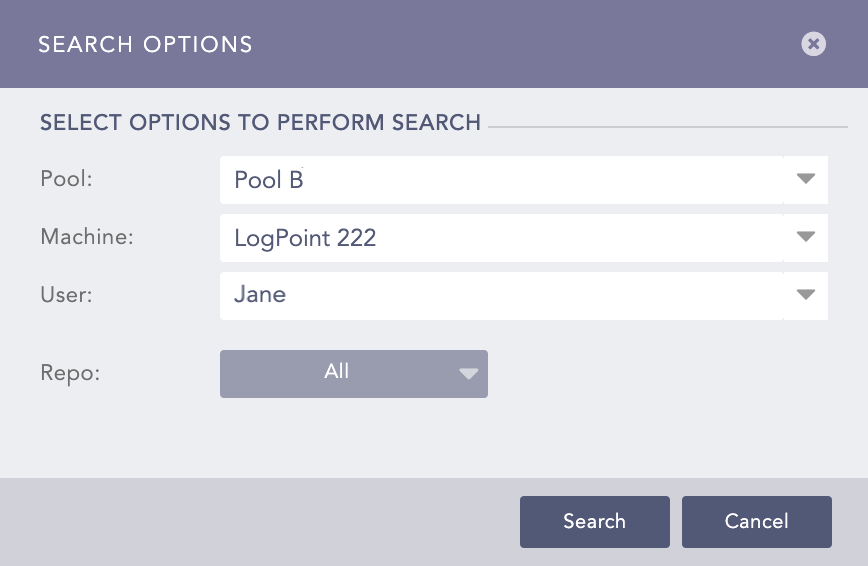
Search Options Panel
Click Search.
Go to Settings >> LogPoint Configuration >> Search Package.
Click the search package you want to edit.
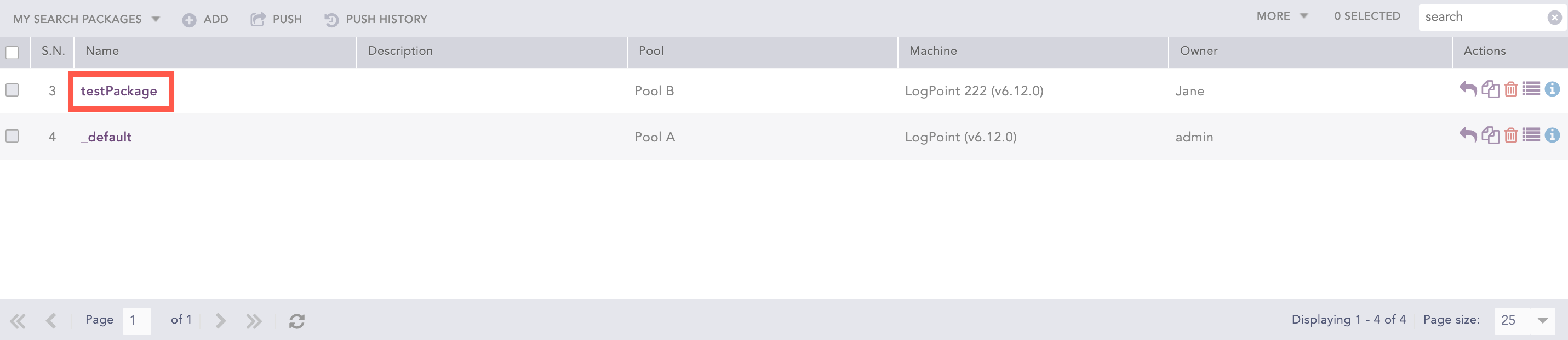
Editing a Search Package
Update the information.
Click Submit.
Go to Settings >> LogPoint Configuration >> Search Packages.
Click the Unshared: Click To share icon from the Actions column of the package you would like to share.
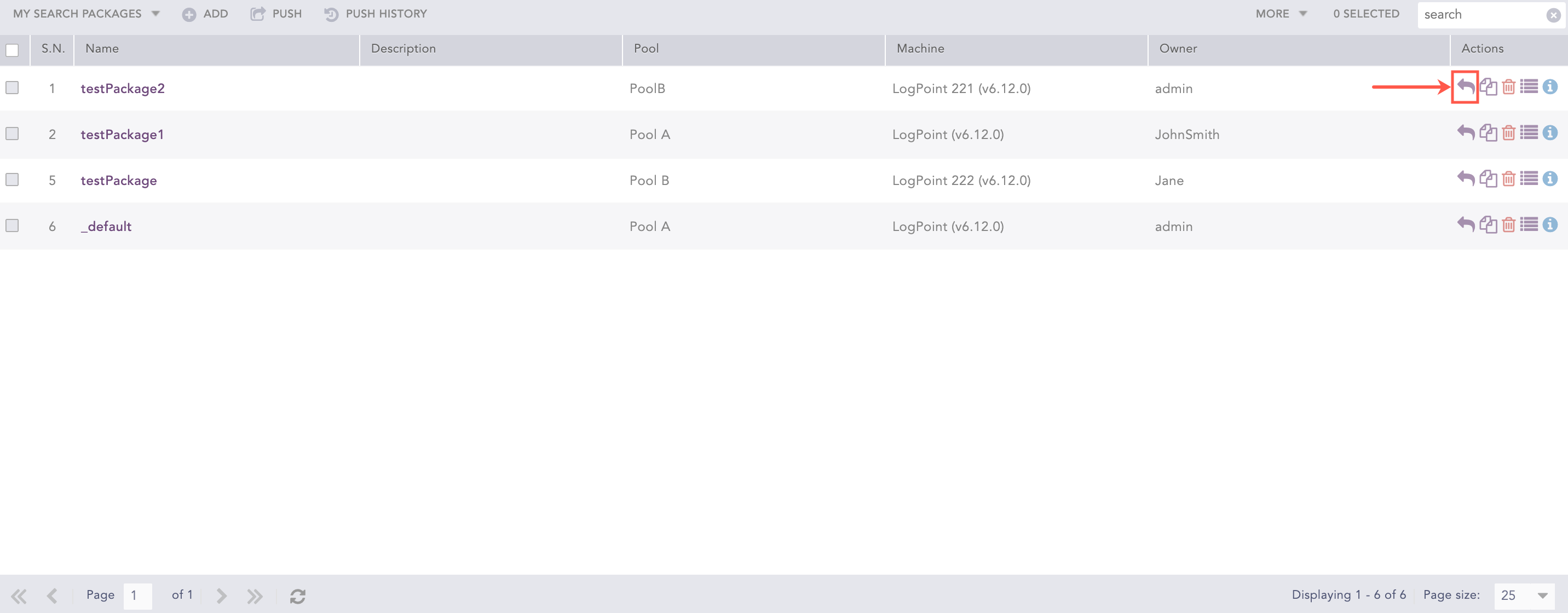
Sharing a Search Package
To share multiple search packages, select the packages. Click the More drop-down and select Share Selected To Users.
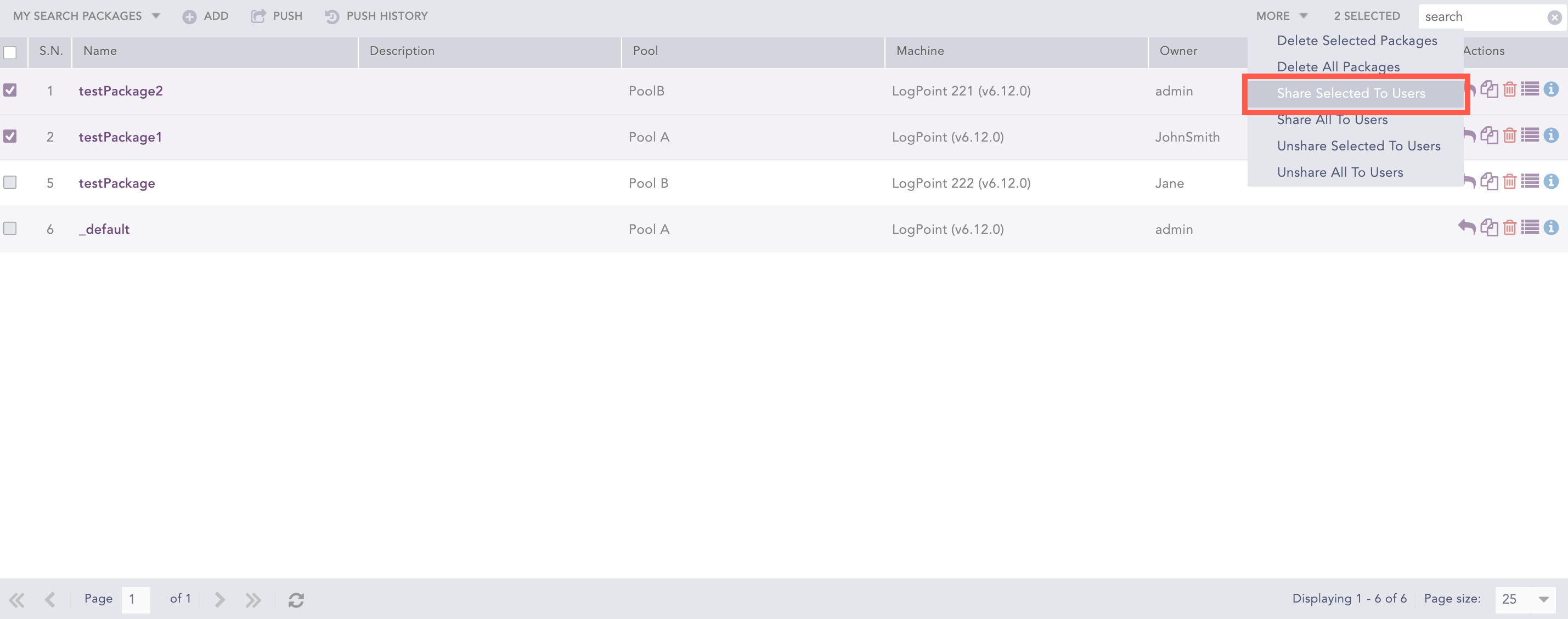
Share Selected Search Packages
To share all the search packages, click the More drop-down and select Share All To Users.
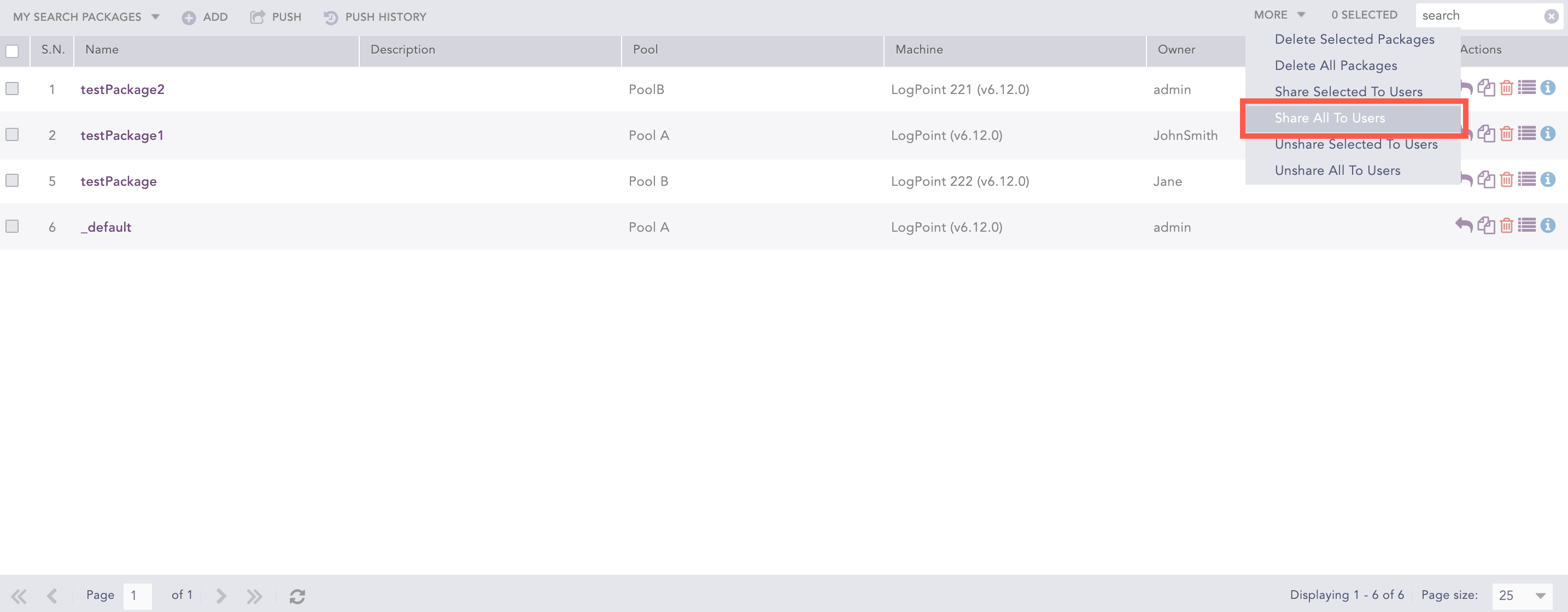
Share All Search Packages
Note
You can unshare search packages using the same method.
Go to Settings >> LogPoint Configuration >> Search Packages.
Click the Clone icon from the Actions column of the search package.
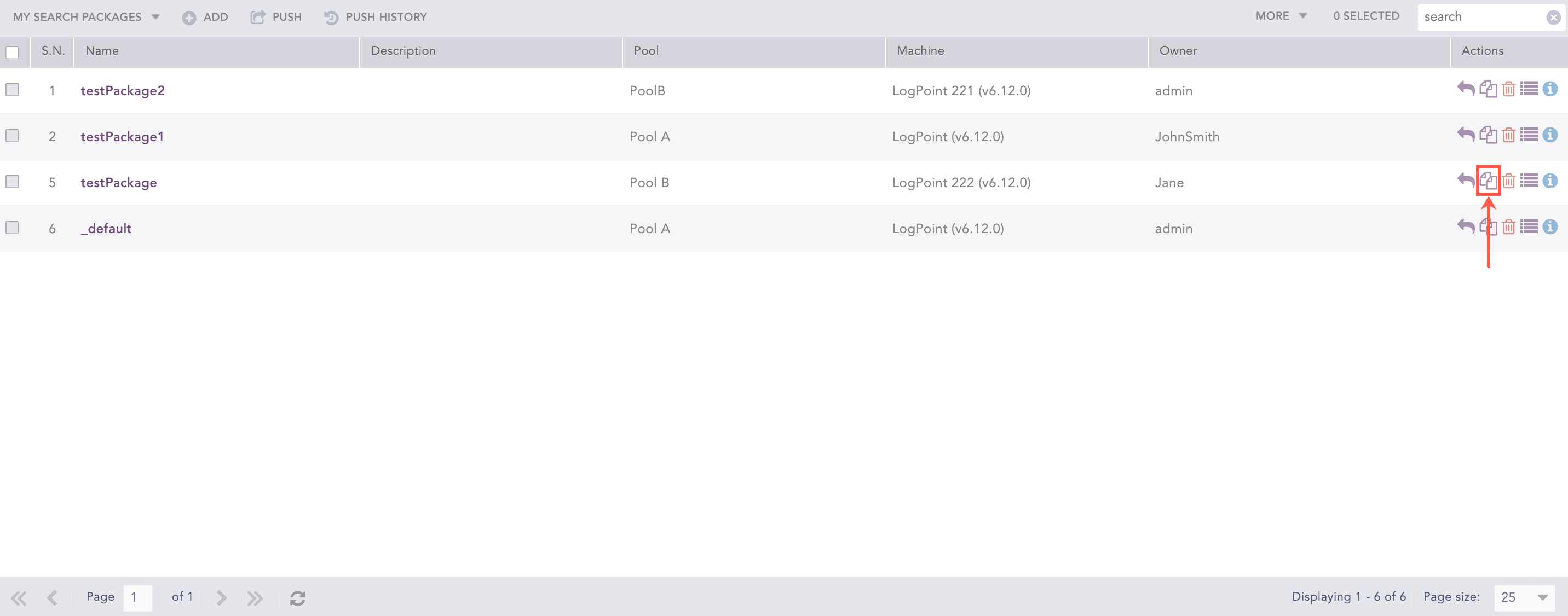
Cloning a Search Package
Enter a new Name for the cloned package.
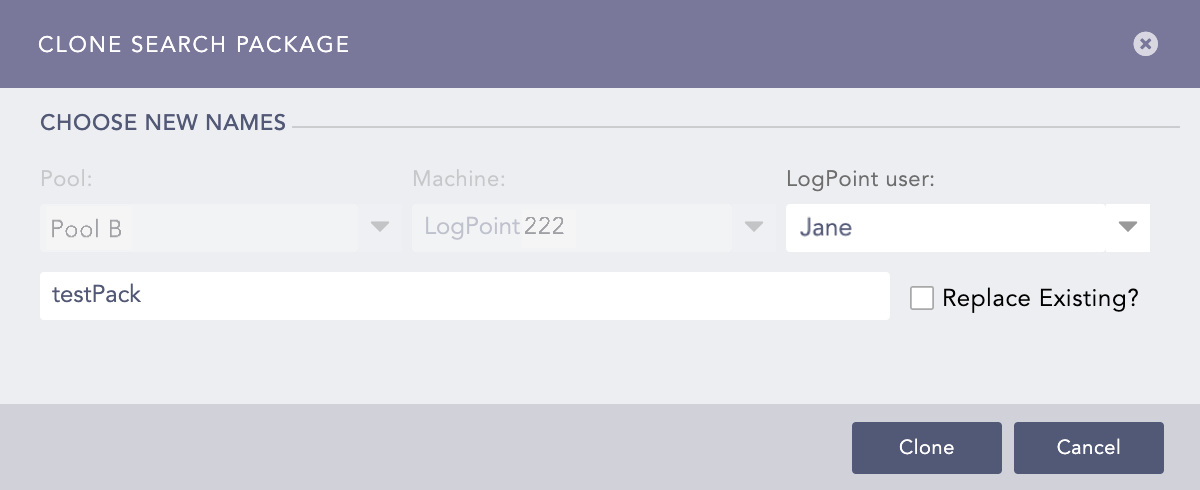
Clone Search Package Panel
Select the Replace Existing? checkbox to replace an existing template with the same name.
Click Clone.
Go to Settings >> LogPoint Configuration >> Search Packages.
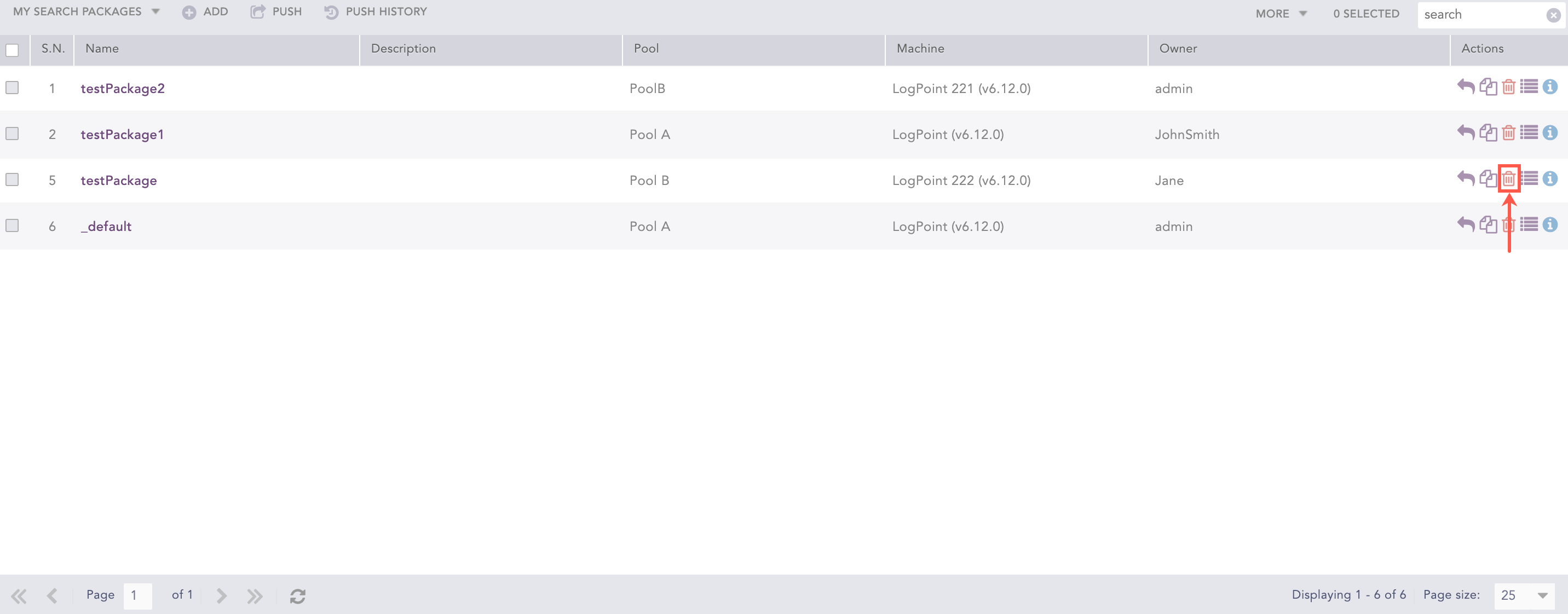
Deleting a Search Package
Click the Delete icon from the Actions column of the search package.
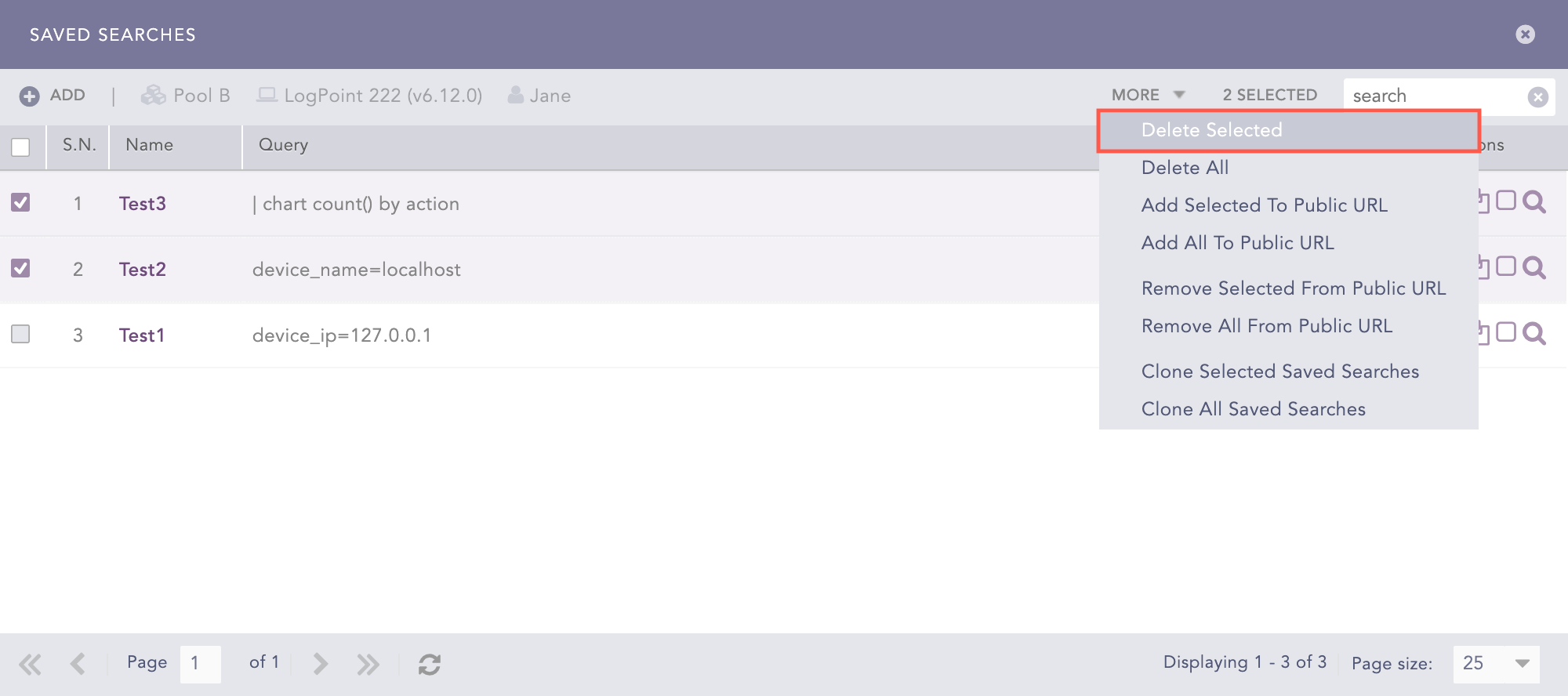
To delete multiple search packages, select the templates. Click the More drop-down and select Delete Selected Templates.
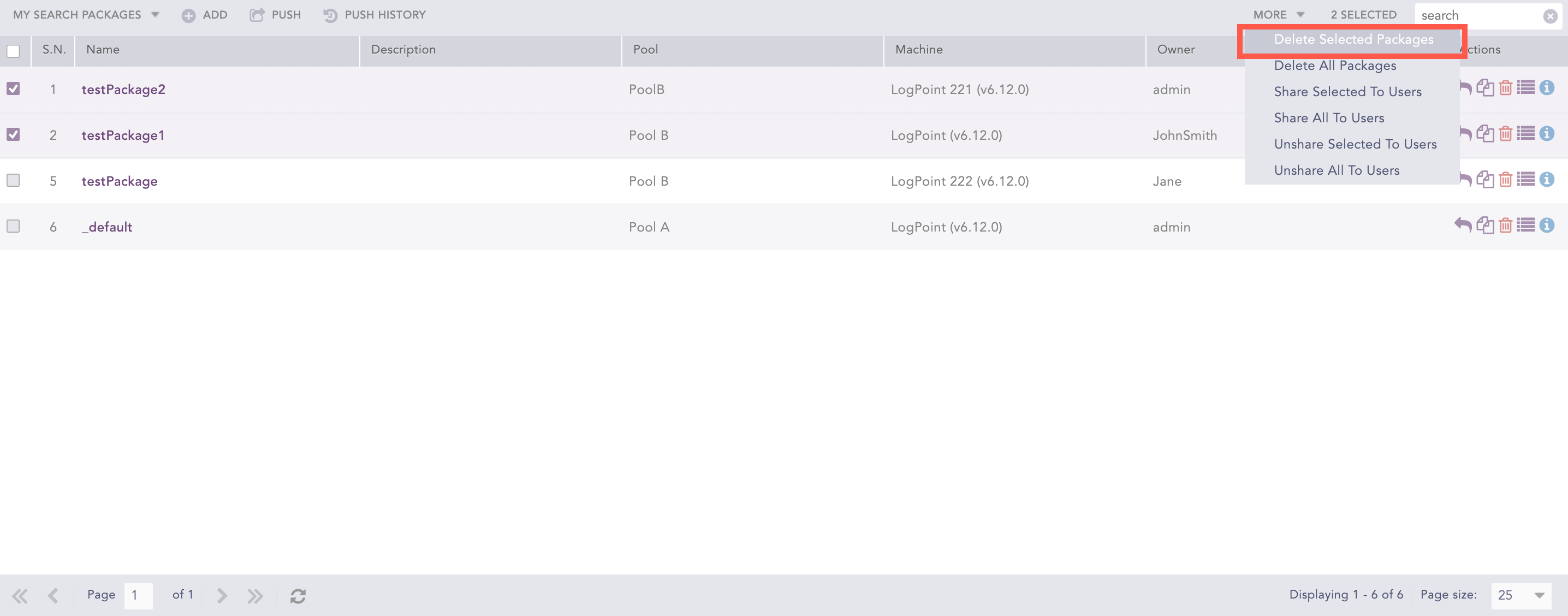
Deleting Selected Search Packages
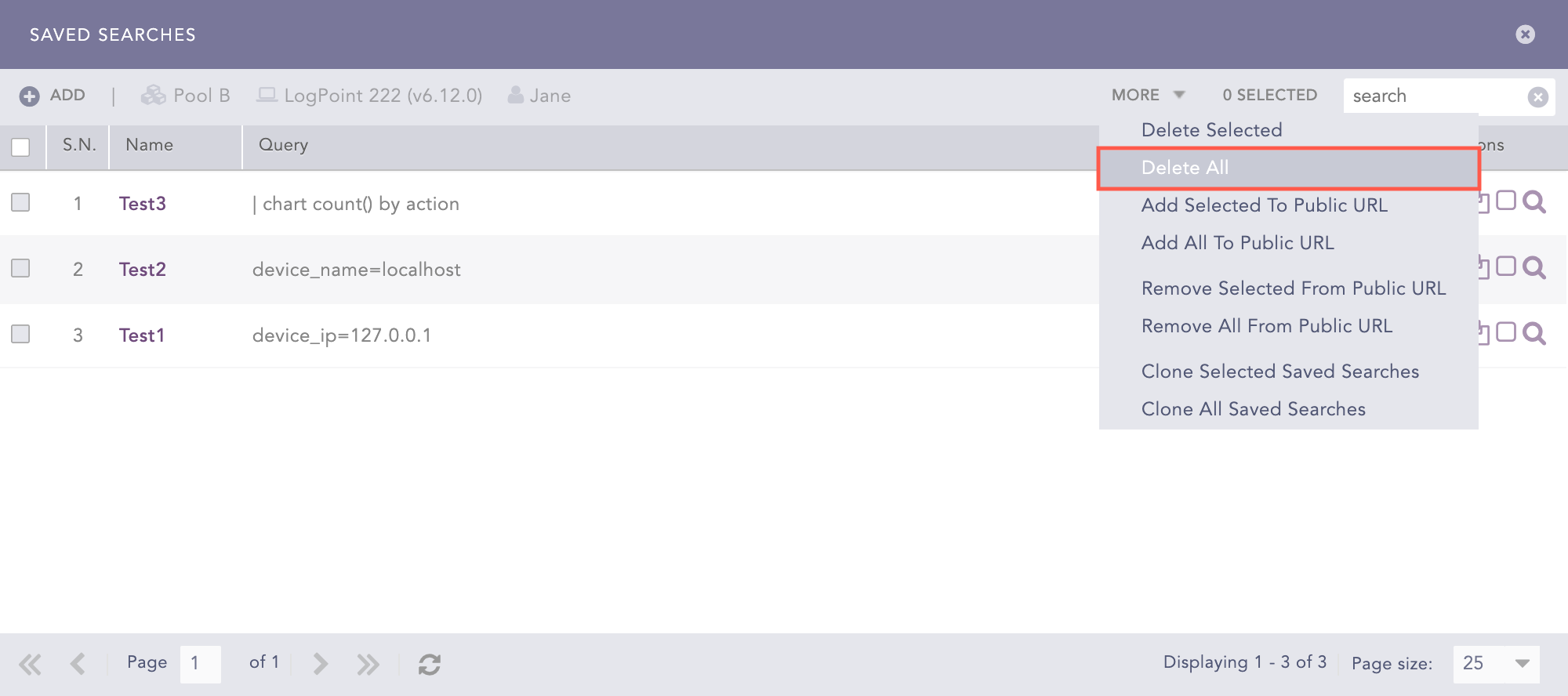
To delete all the search packages, click the More drop-down and select Delete All.
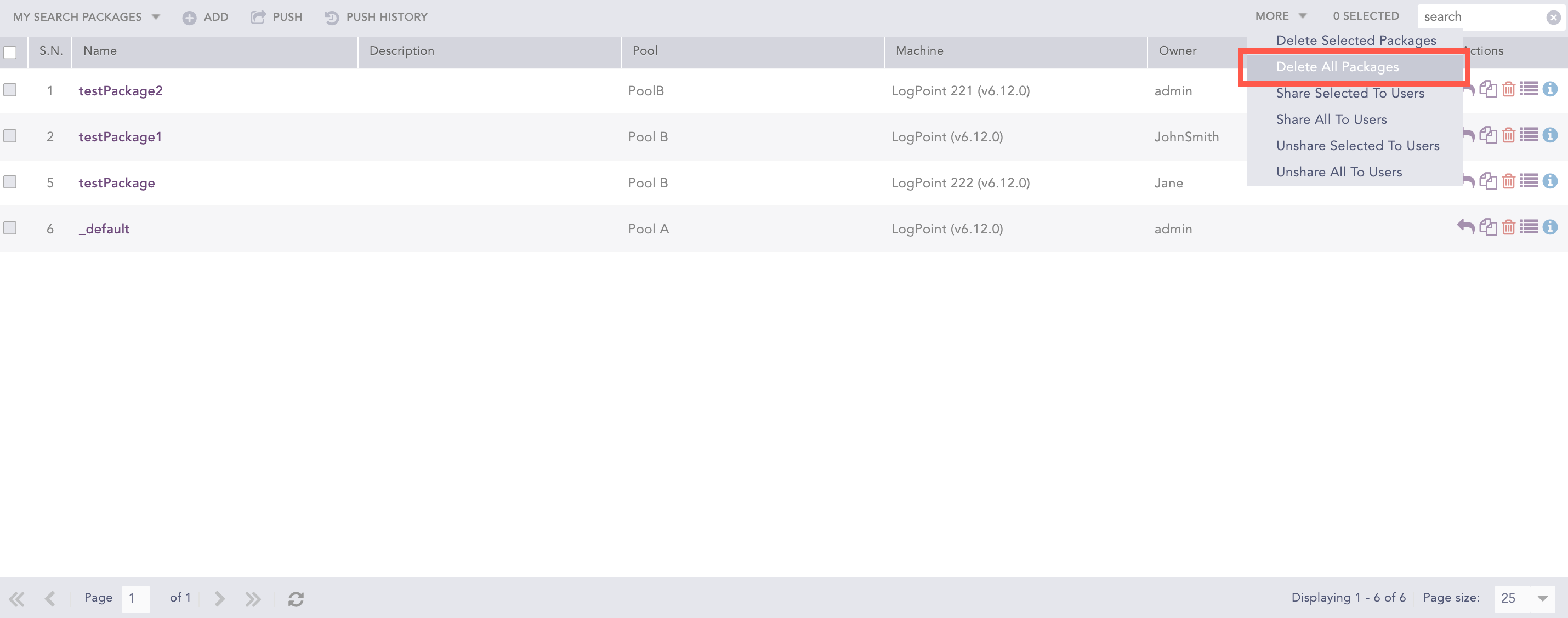
Deleting All Search Packages
Click Yes.